
The process of changing a Medisoft serial key is an easy process as long as the most major part of this guide is followed:
MAKE SURE ALL USERS ARE COMPLETELY LOGGED OUT OF MEDISOFT BEFORE MAKING CHANGES. Failing to heed this warning will result in a tedious process of rebuilding database tables.
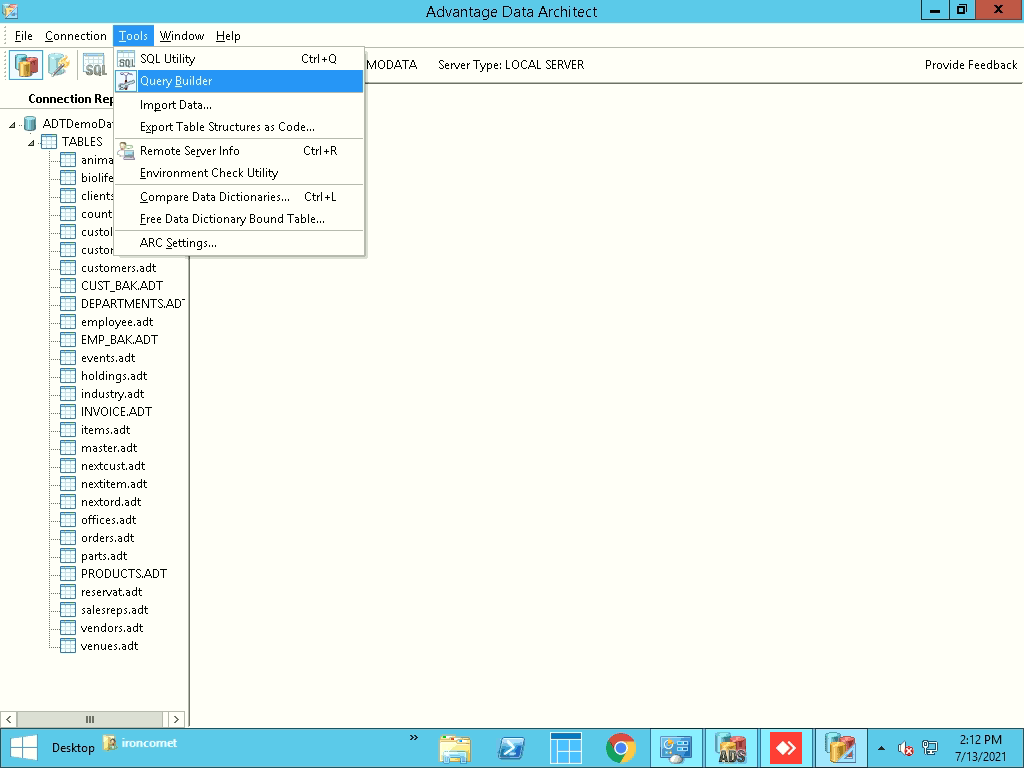
Begin by making sure there are no users logged in. First, launch the Advantage Data Architect. Navigate to the “Tools” tab, then down to “Remote Server Info”.
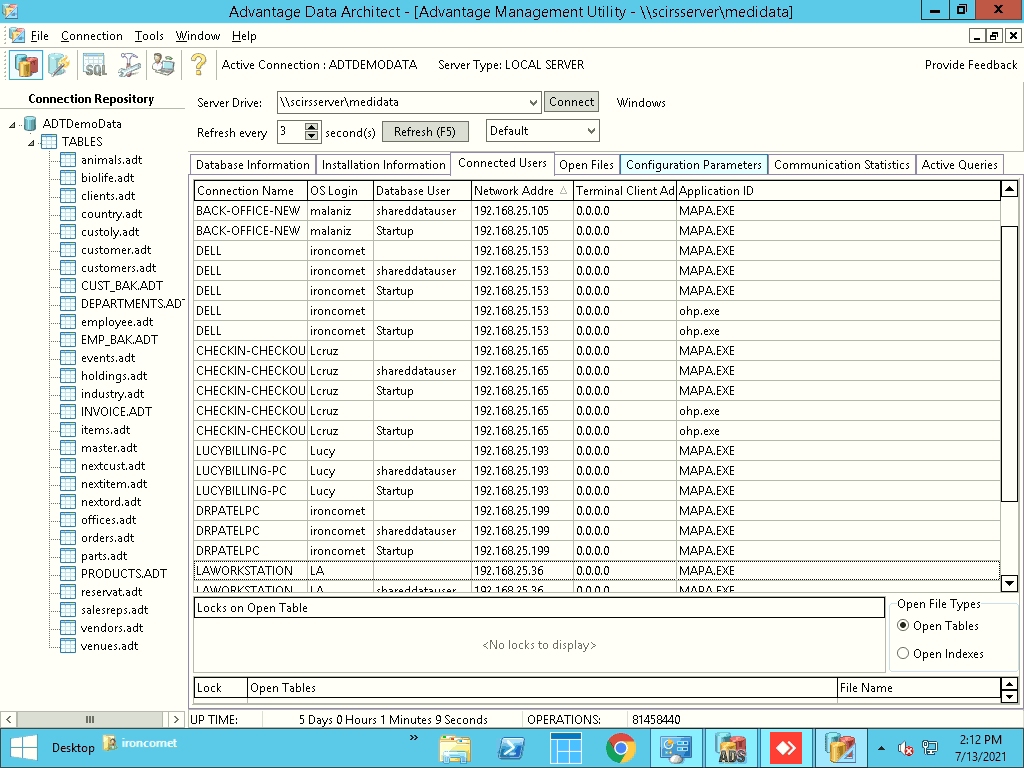
Drop down the “Server Drive” list, and select what should be the only one available then “Connect”. You will now see a list of all connected users. If only the server you are connected to is showing on the list, you are ready to make your modifications.
In the Advantage Configuration Utility, stop the service.
Navigate to C:\Program Files (x86)\Advantage 11.10(or the latest available version)\Server
Launch “adsstamp.exe”. Click the “License” button. Enter the new Serial Key. Launch the Advantage Configuration Utility, navigate to the Configuration Utility tab. Change the “Number of Connections” field to be:
the amount of users the site is allowed * 10
For example:
10 users
10 * 10 = 100 connections
Apply changes then Start the service again. The users should now be able to log in and their max users should now show in the chart on the Database Info tab.